
How We Automated WhatsApp Onboarding for Every Client (Without Touching Meta's Dashboard)
When we started onboarding businesses onto Starfish Health, the WhatsApp setup process was painful. A client would sign up, and then someone on our team had to manually walk them through Meta Business Manager — creating accounts, verifying numbers, configuring webhooks. It took hours per client and didn't scale at all.
So we rebuilt the whole thing. Now a client clicks "Connect WhatsApp," goes through Meta's login flow, and they're live. No manual steps on our end, no back-and-forth. Their number gets registered and the webhook routes to their knowledge base automatically.
Here's how we actually built it.
The big picture before we get into the code
The flow looks like this: client clicks connect → Meta's OAuth runs in their browser → our backend gets a code → we exchange it for a token and their WABA ID → we programmatically add their phone number, verify it, and register it → messages start flowing to their chatbot.
Meta calls this Embedded Signup and it really does handle the complicated parts on the client side. What's left is a handful of Graph API calls on our backend, which we'll walk through step by step.
One thing worth knowing upfront: only a business admin can complete this flow for their own account. Your app can manage the WABA after onboarding but can't finish the signup on someone else's behalf. That's a Meta rule, not a technical limitation.
Step 1: Setting up the Meta app (do this once)
Before writing any onboarding code, you need a Meta app configured correctly. A few things that tripped us up when we first did this:
Go to Meta for Developers, create a Business type app, and add the WhatsApp product. Under Facebook Login, create a new configuration with Login Variant set to Embedded Signup and WhatsApp Account as the asset type with Manage Account permission. The three permissions you need are whatsapp_business_management, whatsapp_business_messaging, and business_management.
Copy the Configuration ID from this screen. You'll need it in your frontend code.
One more thing: unverified businesses are capped at 2 phone numbers. If your clients need more than that, they'll need to complete Meta's business verification. Worth flagging to clients during onboarding so it doesn't catch anyone off guard later.
Step 2: The "Connect WhatsApp" button
This is the frontend piece. You embed Meta's JavaScript SDK and call FB.login() with the right parameters. When the client completes the flow, Facebook gives you back an authorization code.
function embeddedSignup() {
  FB.login(function(response) {
    if (response.authResponse) {
      const authCode = response.authResponse.code;
      fetch('/api/whatsapp/onboarding', {
        method: 'POST',
        headers: { 'Content-Type': 'application/json' },
        body: JSON.stringify({ code: authCode })
      });
    }
  }, {
    scope: 'business_management,whatsapp_business_management,whatsapp_business_messaging',
    config_id: 'YOUR_CONFIGURATION_ID',
    response_type: 'code',
    override_default_response_type: true,
    extras: {
      feature: 'whatsapp_embedded_signup',
      featureType: 'only_waba_sharing',
      version: 2
    }
  });
}
That authCode is the whole onboarding session encoded. Send it to your backend immediately — it's short-lived.
The featureType: 'only_waba_sharing' flag skips the phone number selection step inside Meta's flow, which we prefer since we handle phone registration ourselves on the backend.
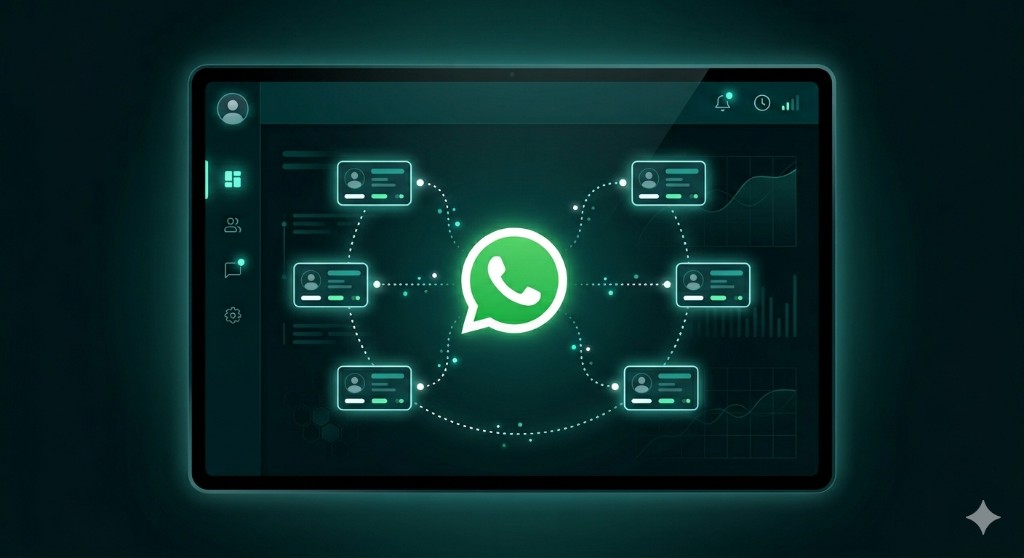
Figure 1: Each client's WhatsApp number routes to their own knowledge base in a multi-tenant setup.
Step 3: Exchange the code and grab the WABA ID
On your backend, you make two calls. First, exchange the code for a business access token:
GET https://graph.facebook.com/v17.0/oauth/access_token?
  client_id=YOUR_APP_ID
  &client_secret=YOUR_APP_SECRET
  &code=AUTH_CODE_FROM_CLIENT
Then hit debug_token using your system user token to inspect the returned token:
GET https://graph.facebook.com/v17.0/debug_token?
  input_token=<BUSINESS_TOKEN>
Authorization: Bearer <YOUR_SYSTEM_USER_TOKEN>
In the response, find the WABA ID under the target_ids array. Save it. This is the client's WhatsApp Business Account — everything else hangs off this ID.
Step 4: Assign your system user and subscribe to webhooks
Your app needs to "claim" the WABA so it can manage it going forward. Two calls:
POST https://graph.facebook.com/v17.0/{WABA_ID}/assigned_users?
  user=<SYSTEM_USER_ID>
  &tasks=['MANAGE','DEVELOP']
  &access_token=<SYSTEM_USER_TOKEN>
POST https://graph.facebook.com/v17.0/{WABA_ID}/subscribed_apps
Authorization: Bearer <SYSTEM_USER_TOKEN>
The second call is the one that actually connects the WABA to your app's webhook URL. After this, any messages coming into this client's number will hit your endpoint.
Step 5: Phone number registration (the multi-step part)
This is where things get a bit more involved. Four sub-steps:
Add the number to the WABA:
POST https://graph.facebook.com/v17.0/{WABA_ID}/phone_numbers
Body: { "cc": "1", "phone_number": "15551234567", "verified_name": "Client Business" }
You get back a PHONE_ID.
Request a verification code (Meta sends an SMS):
POST https://graph.facebook.com/v17.0/{PHONE_ID}/request_code?code_method=SMS&language=en
Verify the code the client enters in your UI:
POST https://graph.facebook.com/v17.0/{PHONE_ID}/verify_code?code=<CODE_FROM_SMS>
Register the number to make it live on the WhatsApp Cloud API:
POST https://graph.facebook.com/v17.0/{PHONE_ID}/register
Body: { "messaging_product": "whatsapp", "pin": "123456" }
After that last call, the number is active. Messages can flow in and out.
Step 6: Routing messages to the right client
Here's the multi-tenant part. Your Meta app has one webhook URL. Every message from every client's number hits the same endpoint. The trick is the phone_number_id field in each webhook payload:
{
  "entry": [{
    "changes": [{
      "value": {
        "messages": [{ "from": "...", "text": { "body": "Hello" } }],
        "phone_number_id": "<PHONE_ID>"
      }
    }]
  }]
}
When you register a phone number during onboarding, store the mapping: PHONE_ID → client_id in your database. Then in your webhook handler, look up the tenant from the phone_number_id and route accordingly.
For any real volume, put a queue in the middle. Push incoming messages into queue:{client_id}, pull with dedicated workers. This keeps clients isolated and lets you scale workers independently.
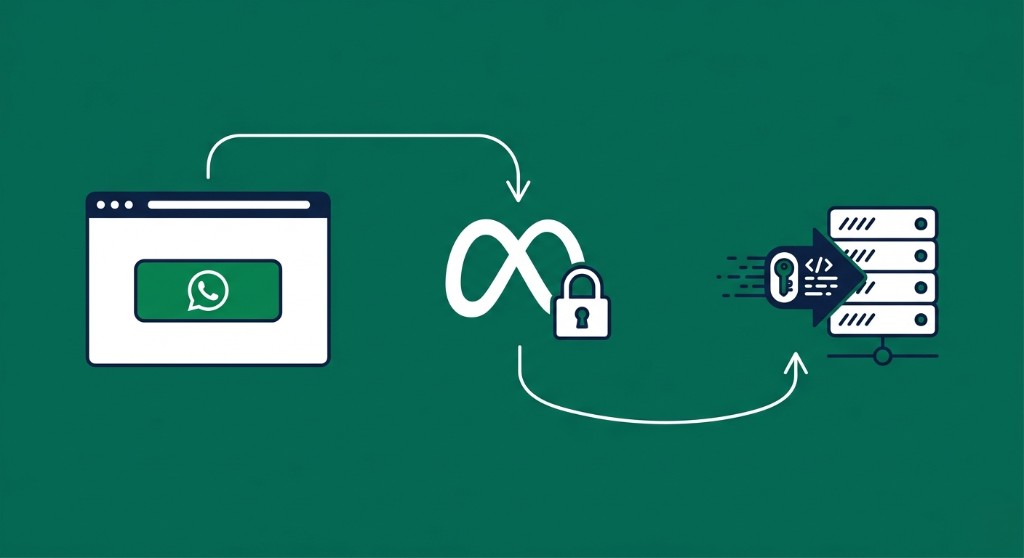
Figure 2: Client browser completes Meta OAuth; our backend exchanges the code for a token and registers the number.
A few things we learnt the hard way
Webhook signatures matter. Verify the X-Hub-Signature header on every incoming request. Don't skip this in staging and forget to turn it on in prod.
Store App ID, App Secret, and your system user token in environment variables. Never in source code. Obvious in theory, easy to mess up when you're moving fast.
Handle duplicate events. Meta can send the same webhook event more than once. Build idempotency into your message processing — check if you've seen the message ID before acting on it.
Rate limits are real. If you're doing high-volume onboarding or sending bulk messages, monitor your API usage. Use exponential backoff on retries.
Template messages for outbound. Outside the 24-hour messaging window, you can only reach users with pre-approved templates. Get your templates submitted and approved before you need them, not after.
Where this leaves us
This whole flow took us from manual back-and-forth for every client to a self-serve onboarding where a new client can be live on WhatsApp in under 10 minutes. The Graph API handles the complexity — you just need to call the right endpoints in the right order.
If you're building something similar and hitting issues with FB.login returning status: unknown or webhook routing bugs, we've been through most of them. Questions about WhatsApp onboarding or patient communication at scale? Connect on LinkedIn or learn more at Starfish Health.
Related articles
Apr 7, 2026·6 min read
Taming Background Noise in Real-Time Voice Agents
How we stopped our AI voice agent from interrupting itself every time a door closed.
May 22, 2026·7 min read
Optometry Patient Engagement Vendors in Dallas: 2026 Vendor Comparison
Compare the top optometry patient engagement vendors for Dallas, TX practices in 2026 — Starfish Health vs. DoctorConnect, Adit, RevEngage, and Weave.
May 2, 2026·9 min read
Building a Production-Grade Data Pipeline
ETL pipeline: JSON extraction, Supabase raw tables, dbt transforms, production UPSERTs—manifests, queues, idempotency, and failure modes we hit in production.